Skip to content
Channel Manager Everything about Channel Manager Airbnb listing for your holiday homeBooking.com listing for your holiday homeVRBO integration for international holiday rentalsGoogle Travel integration for holiday rentalsLink Airbnb to Booking.com
Website Everything about Website Website builder for your holiday homeVoyando with your own websiteSecure online payments for guests
Rental Management Everything about Rental Management Automatic emailsFull guest registrationCurrent prices and calendarSmart locksRental calendarReviews
Marketing Everything about Marketing Voyando app
Features Pricing Blog Help Sign in
Try free for 30 days Book an advice call

How do I add my own photos?

9 steps Updated

Simply add your own photos, edit them and provide a description in each language to ensure your accommodation looks professional.

Step by step

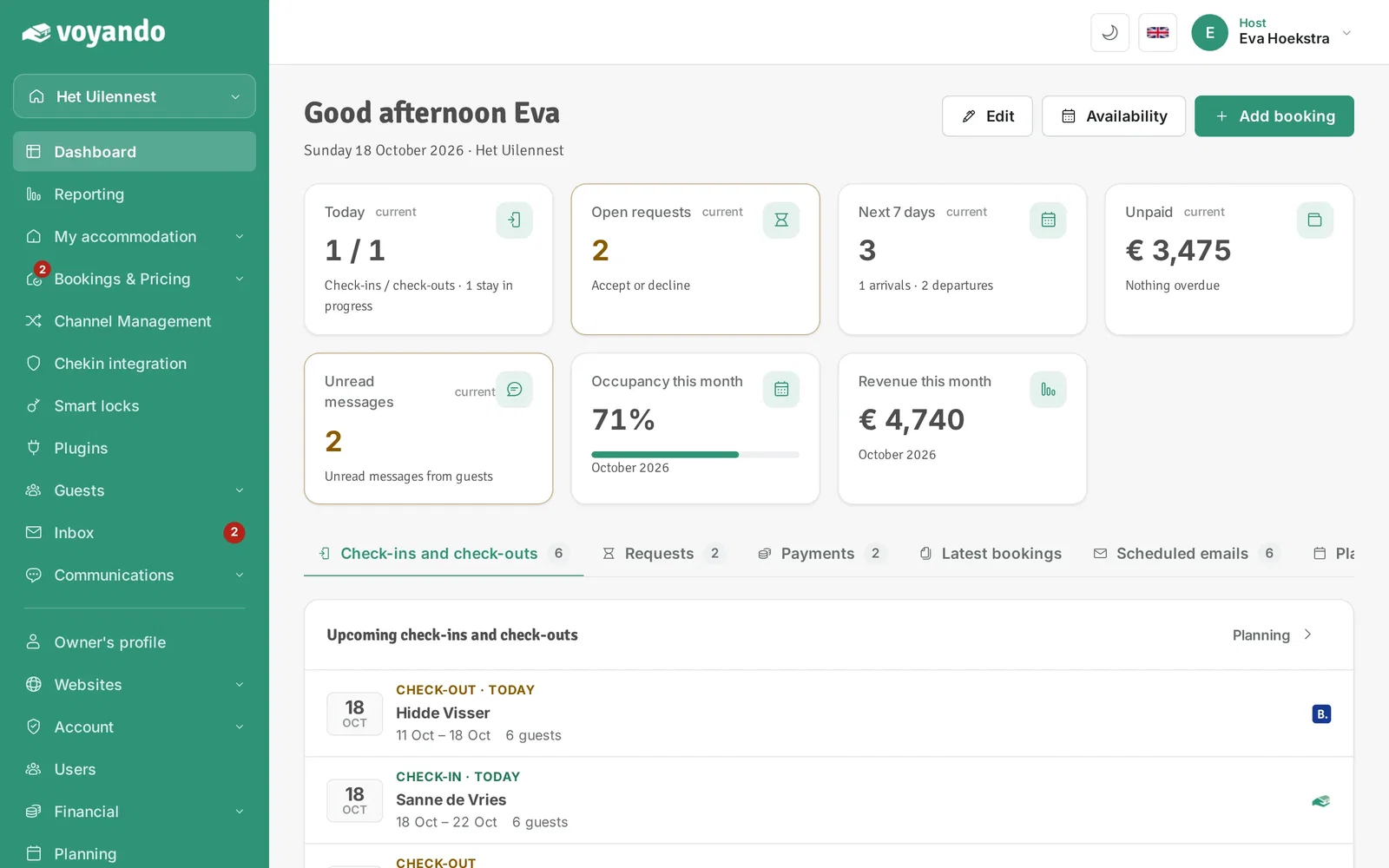
  1. Step 1: Go to your dashboard.

    How do I add my own photos? – step 1: Go to your dashboard.
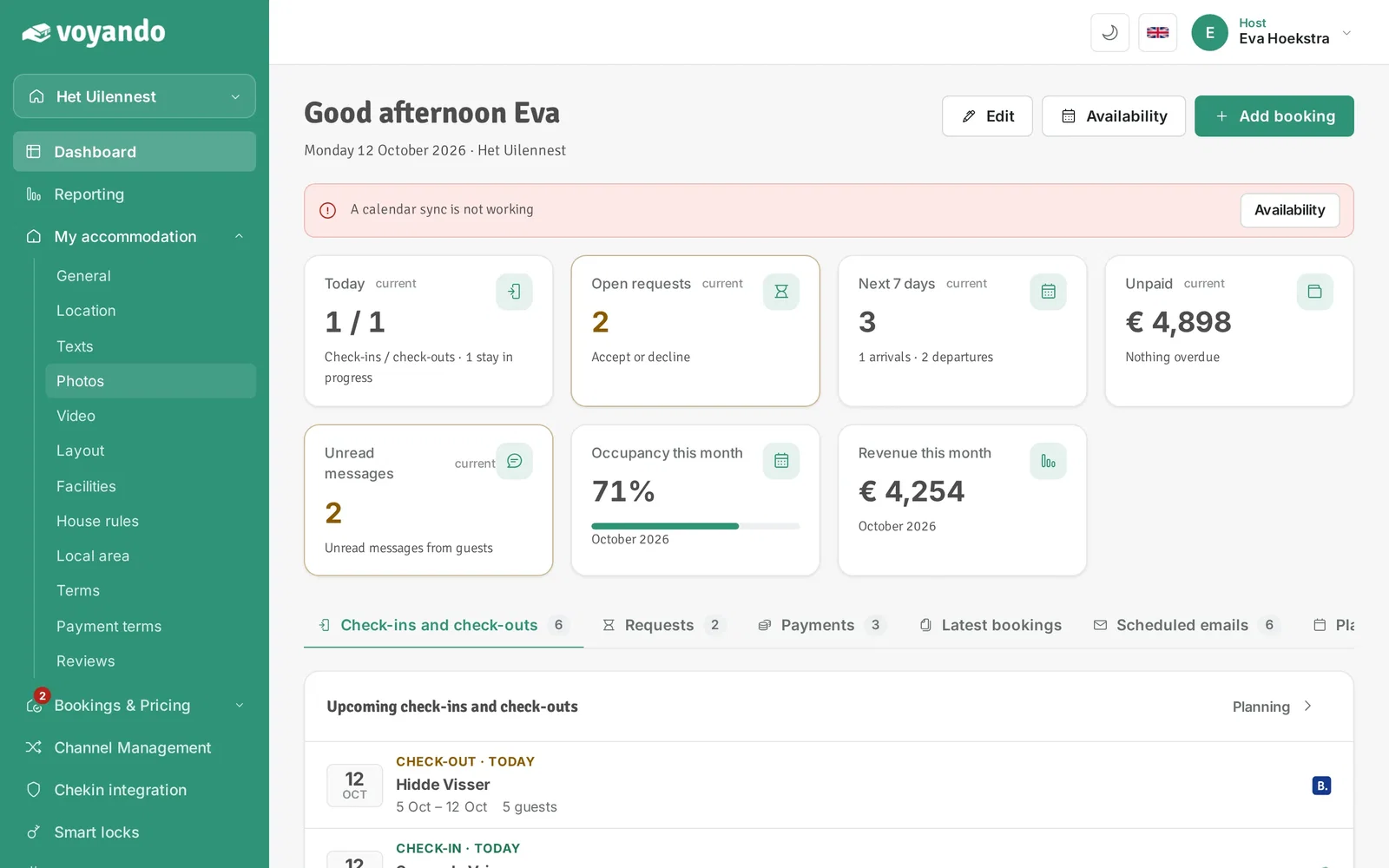
  2. Step 2: Click My accommodation in the menu.
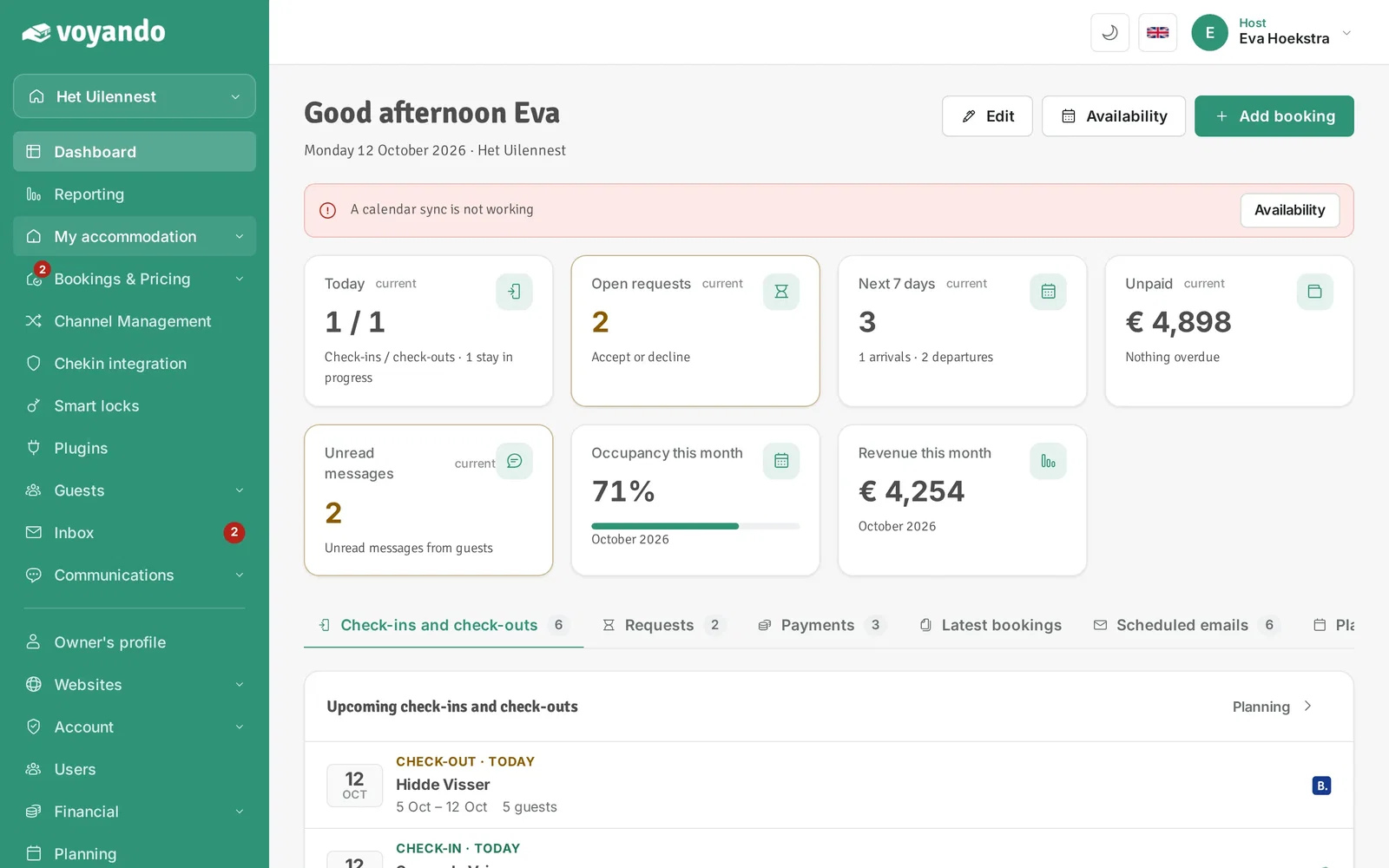
    How do I add my own photos? – step 2: Click My accommodation in the menu.
  3. Step 3: Click Photos.

    How do I add my own photos? – step 3: Click Photos.
  4. Step 4: Click Add photos and choose the photos on your device. Then click Save.
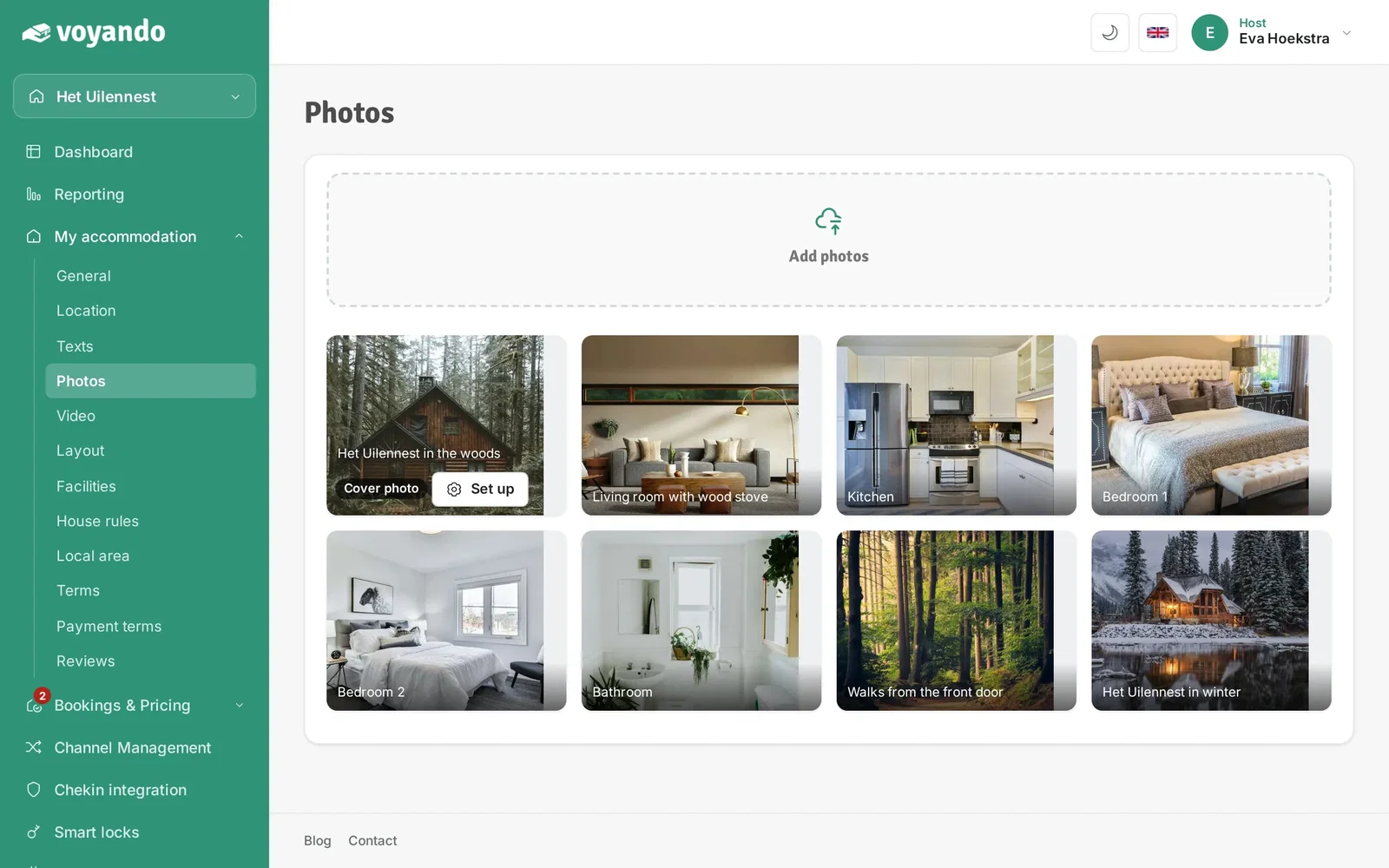
    How do I add my own photos? – step 4: Click Add photos and choose the photos on your device. Then click Save.
  5. Step 5: The photos are now in the gallery. Hover over a photo to see its buttons. Use the arrows icon to drag the photo to another spot and the palette to edit it (crop, rotate, colours).
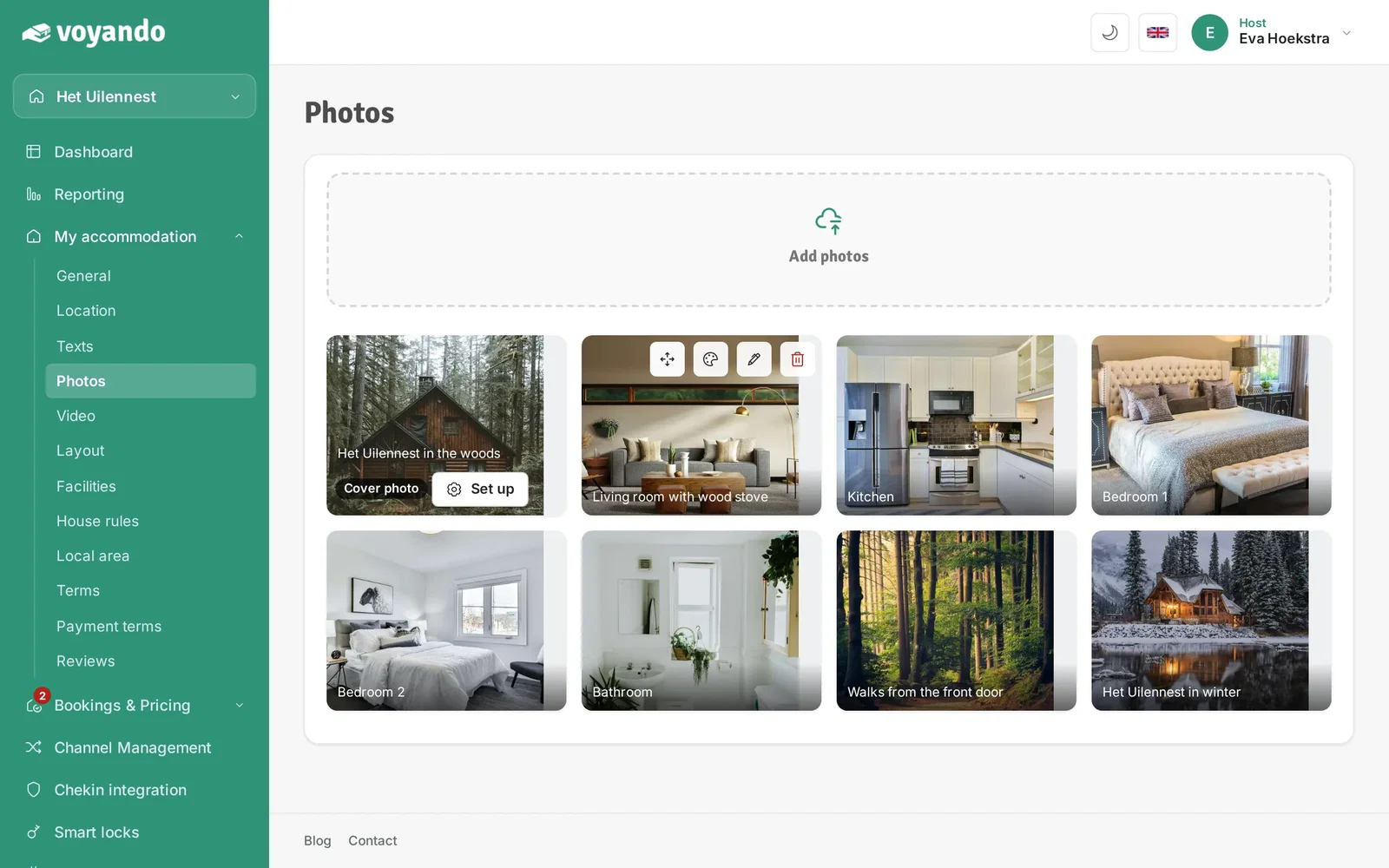
    How do I add my own photos? – step 5: The photos are now in the gallery. Hover over a photo to see its buttons. Use the arrows icon to drag the photo to another spot and the palette to edit it (crop, rotate, colours).
  6. Step 6: Click the pencil to add a description.
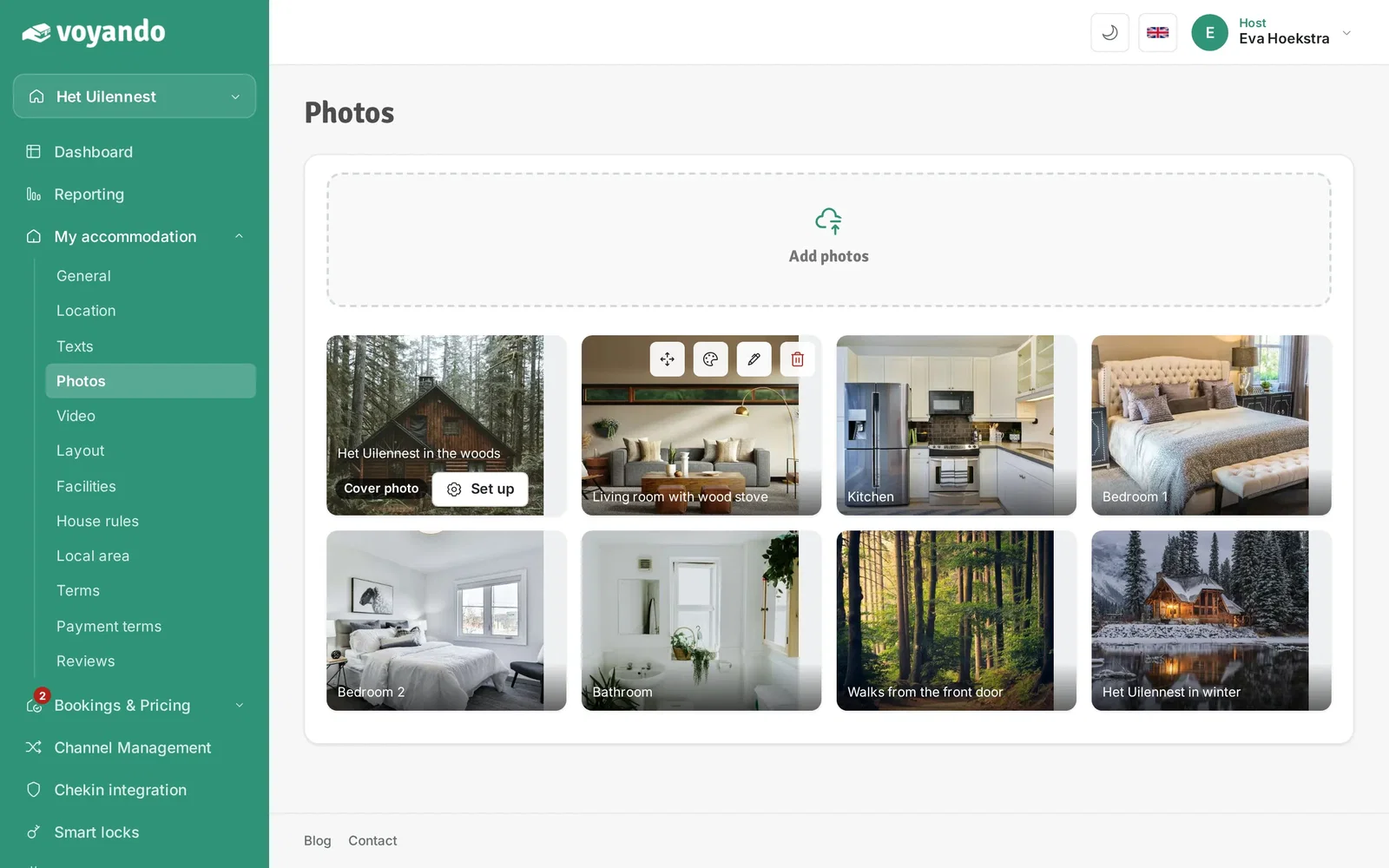
    How do I add my own photos? – step 6: Click the pencil to add a description.
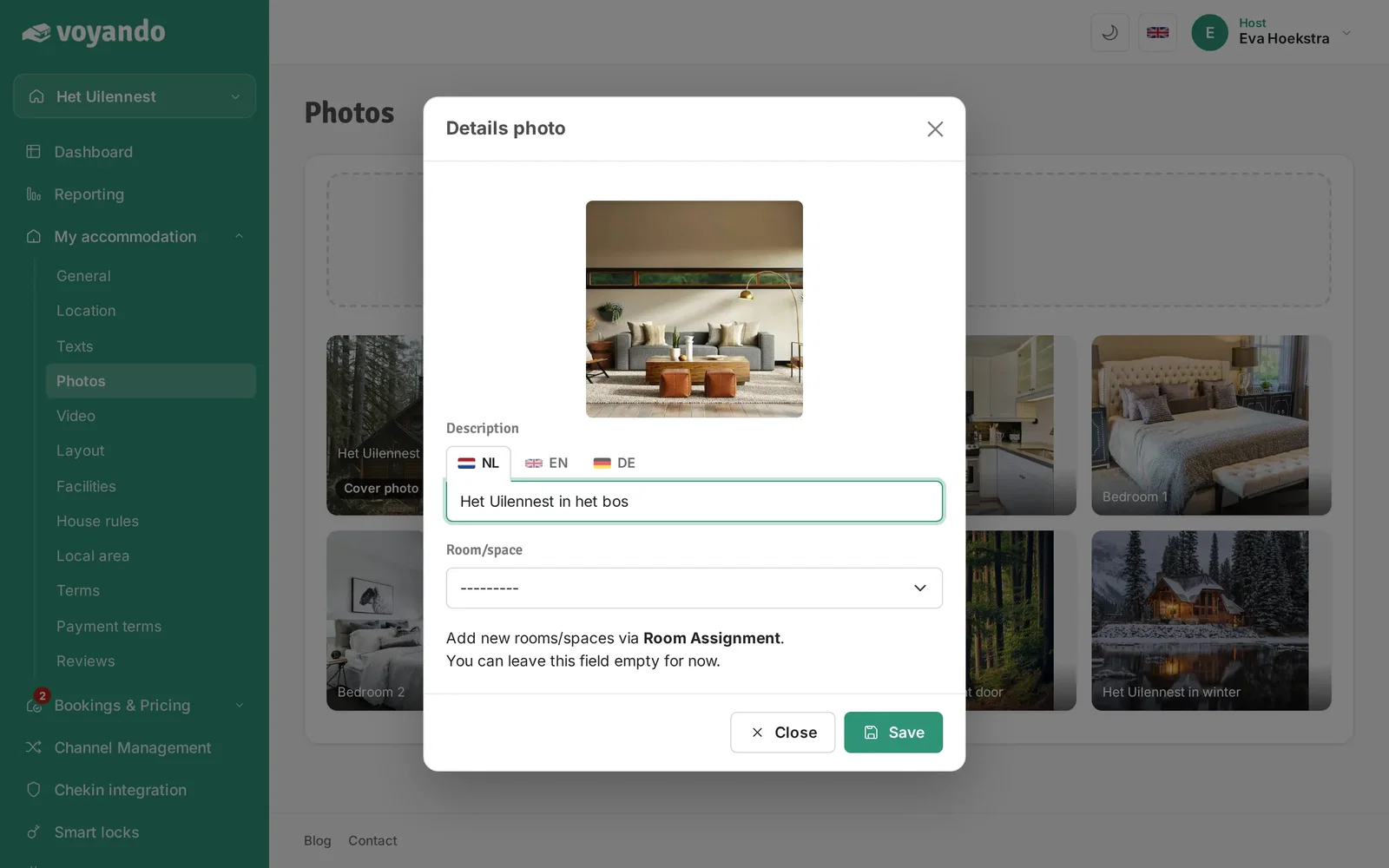
  7. Step 7: Give the photo a description. If you offer several languages, fill in the other language tabs too.
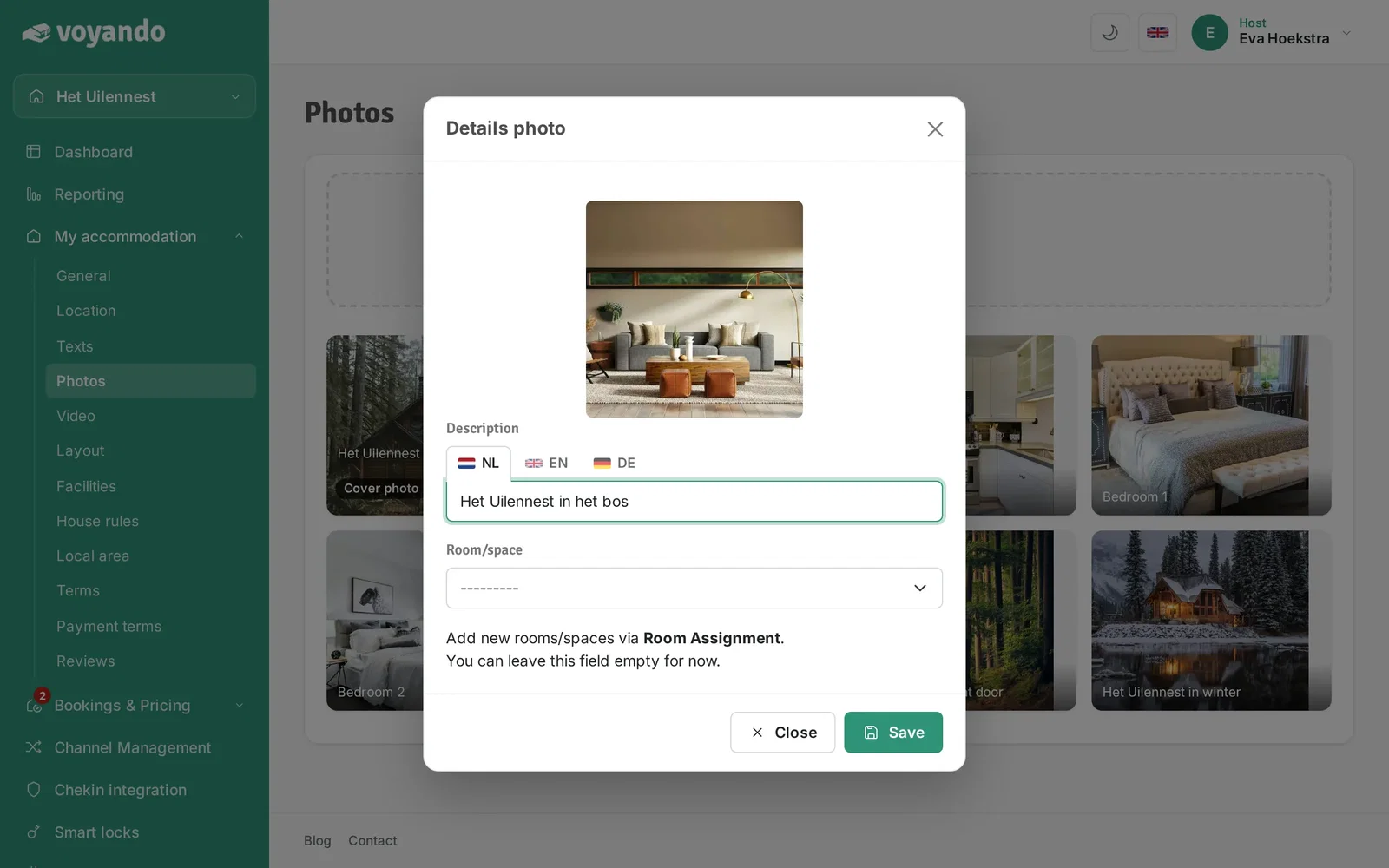
    How do I add my own photos? – step 7: Give the photo a description. If you offer several languages, fill in the other language tabs too.
  8. Step 8: Optionally choose the room the photo belongs to.
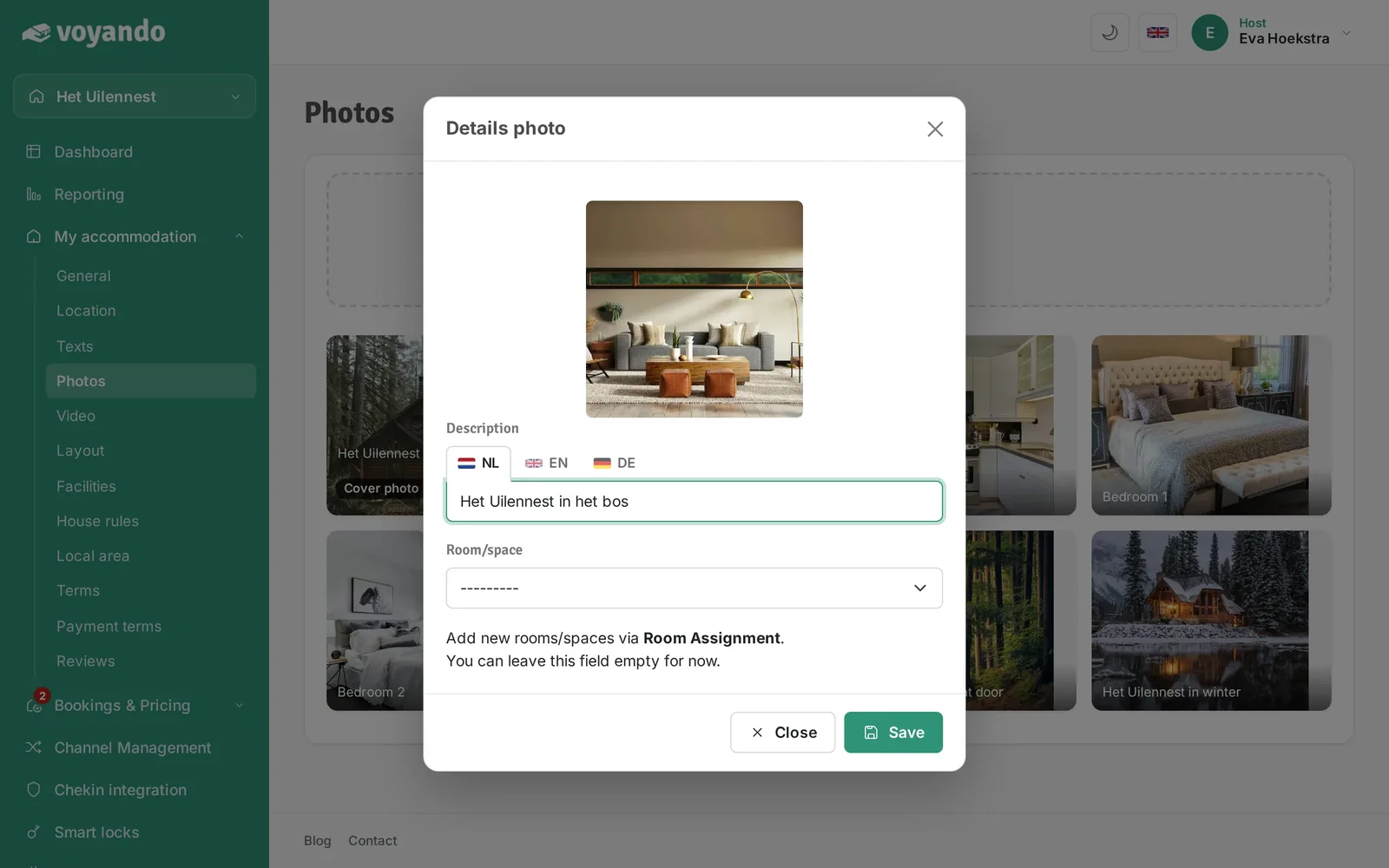
    How do I add my own photos? – step 8: Optionally choose the room the photo belongs to.
  9. Step 9: Click Save.

    How do I add my own photos? – step 9: Click Save.
Try for free Demo
Free webinar

Earn up to 15% more with your accommodation

Watch our free webinar with practical tips for more direct bookings and a better price. Leave your email address and you can watch straight away.

Or try Voyando right away 30 days free.